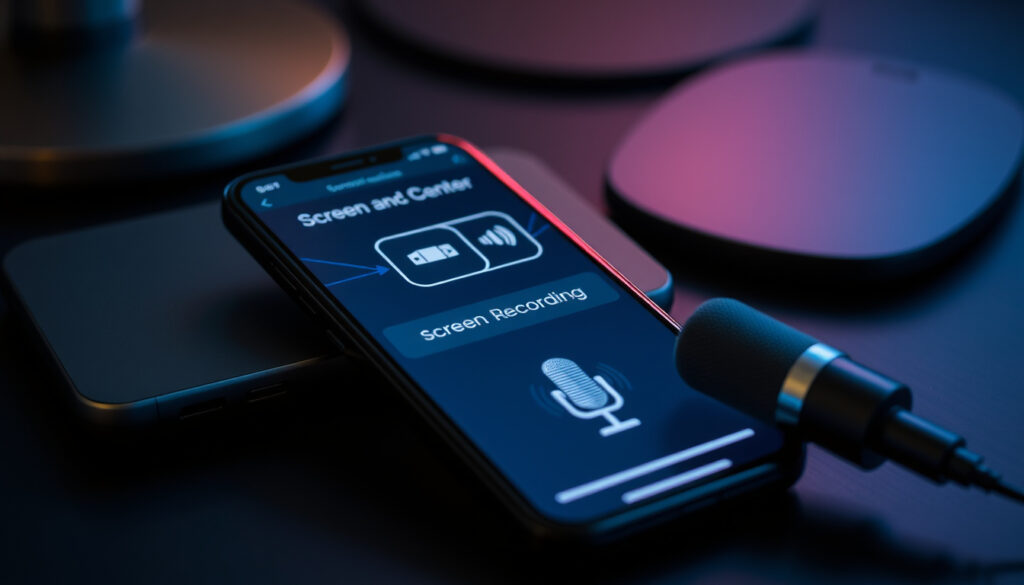
How to Record on iPhone: Audio & Screen Recording
Anyone who has ever fumbled for a notes app at the exact moment a great idea strikes already knows the feeling: you need a recorder, and you need it now. Your iPhone can handle that, and not just for voice memos — it can also capture exactly what’s happening on your screen.
iPhone voice recording apps: Voice Memos pre-installed on all iPhones since iOS 3 ·
Screen recording availability: Introduced in iOS 11 (2017) ·
Audio recording bits per sample: Up to 24-bit, 48 kHz (Voice Memos) ·
Maximum voice memo length: Limited by available storage ·
Screen recording audio support: Built-in microphone or external Bluetooth mic
Quick snapshot
- Voice Memos app is pre-installed in the Utilities folder on all iPhones (Apple Support)
- Screen Recording is available on all iPhones running iOS 11 or later (Apple Support (screen recording))
- To record a conversation, you must use the external microphone (Apple Support)
- Whether third-party call recording apps are legal depends on local jurisdiction (Apple Support Community)
- Future iPhone models may change the control center layout (Apple Support (screen recording))
- Screen Recording added in iOS 11 (2017), Voice Memos present since iOS 3 (Apple Support (screen recording))
- Apple’s official screen-recording support page updated in 2025 (Apple Support (screen recording))
- Future iOS updates may enhance Voice Memos transcription (Apple Support (transcription))
- Third-party apps like Rev Voice Recorder may offer advanced features (Pixenate)
Five key facts — one pattern: your iPhone offers two distinct recording methods, each with its own strengths, and neither overlaps perfectly.
Fact | Value
| Fact | Value |
|---|---|
| Voice Memos app location | Utilities folder on home screen |
| Screen recording iOS version | Available since iOS 11 (2017) |
| Maximum audio bit depth | 24-bit |
| Sample rate | 48 kHz |
| Storage limit | Only device storage |
The implication: the combination of high-quality audio recording and screen capture means most users never need a third-party app — unless they want cross-device sync or transcription.
How do I use my iPhone as a recorder?
Using Voice Memos for audio recording
- Open the Voice Memos app from the Utilities folder on your home screen (Apple Support).
- Tap the red Record button at the bottom center to start (Apple Support).
- Tap the Pause button to pause temporarily, or tap Done to stop and save (Apple Support).
- Voice Memos recordings save automatically to iCloud across iPhone, iPad, Mac, and Apple Watch (Apple Support (iPad)).
The app turns your iPhone into a portable audio recorder capable of capturing personal notes, song ideas, and family moments (Apple App Store). For professionals, the 24-bit, 48 kHz quality rivals many standalone recorders.
Using Screen Recording for screen and audio
- Swipe down from the top-right corner of the screen to open Control Center (Apple Support (screen recording)).
- Tap the gray Record button — a circle outline icon — to start with a 3-second countdown (Apple Support (screen recording)).
- To also record your voice, long-press the Screen Recording icon and tap the Microphone button to enable audio (Apple Support Community).
- Tap the red status bar at the top of the screen to stop — the video saves to Photos (Apple Support (screen recording)).
Screen Recording is available on all iPhones, iPads, and iPod touches running iOS 11 or later (Apple Support (screen recording)).
The pattern: audio-only capture via Voice Memos and screen-and-audio capture via Screen Recording serve different needs, yet both are accessible from a few taps.
Screen Recording captures on-screen content, but it will not record protected audio like phone calls or DRM-restricted media — a design choice rooted in legal compliance and user privacy.
Where is the recording button on my iPhone?
Finding the record button in Voice Memos
- Inside Voice Memos, the red Record button sits at the bottom center of the screen (Apple Support).
- If you cannot find the app, search for “Voice Memos” via Spotlight (swipe down from the middle of the home screen).
Finding the screen record button in Control Center
- The Screen Record button is a grey icon with a circle outline, located in Control Center (Apple Support (screen recording)).
- If the button is missing, go to Settings > Control Center and tap the green plus (+) icon next to “Screen Recording” to add it (Apple Support Community).
The pattern: both recording buttons are just one or two taps away, but finding them requires knowing where to look — especially for new iPhone users.
How do I record a live conversation on my iPhone?
Legal considerations before recording a conversation
- Apple does not include a call recording feature because of differing local and national laws (Apple Support Community).
- In many jurisdictions, recording a conversation without consent is illegal. Always check local laws before recording.
Step-by-step: recording a conversation with Voice Memos
- Place your iPhone near the speaker to capture both sides of the conversation through the built-in microphone (Apple Support).
- Open Voice Memos, tap the red Record button, and speak naturally.
- For better audio quality, use an external Bluetooth microphone or a wired headset with a mic.
The trade-off: ambient recording works well for in-person meetings, but you cannot directly record a phone call without third-party apps — and those apps carry legal risk depending on where you live.
How do I screen record on iPhone 13, 14, 15, or 17?
Adding Screen Recording to Control Center
- Go to Settings > Control Center and add Screen Recording if it is not already there (Apple Support (screen recording)).
Starting and stopping a screen recording
- Open Control Center (swipe down from top-right corner on iPhone models with Face ID, or swipe up from bottom on models with Home button).
- Tap the Screen Recording button — a 3-second countdown begins, then the recording starts (Apple Support (screen recording)).
- Tap the red status bar at the top of the screen to stop recording — the video saves to the Photos app (Apple Support (screen recording)).
Recording with audio from your microphone
- Long-press the Screen Recording icon in Control Center, then tap the Microphone icon to enable audio capture (Apple Support Community).
- This allows you to add voice commentary to your screen recording — useful for tutorials or walkthroughs.
The process is identical across iPhone 13, 14, 15, and 17 — Apple has kept the workflow consistent since iOS 11 (Apple Support (screen recording)).
How do I turn on voice recording on my iPhone?
Activating Voice Memos for the first time
- Voice Memos is pre-installed — no download is required (Apple Support).
- Tap the app icon, then tap the red Record button to start your first recording.
Using Siri to start a voice recording
- Say “Hey Siri, start a voice memo” to begin recording hands-free (Apple Support).
- Siri opens Voice Memos and automatically starts recording — useful when you cannot tap the screen.
The pattern: turning on voice recording requires no setup, just a tap or a voice command — making it one of the quickest tools on your iPhone to activate.
How to edit and share recordings on iPhone
Editing Voice Memos recordings
- After recording, tap the waveform to trim the beginning or end of the audio file (Apple Support).
- You can also replace a portion of the recording by tapping the Replace button while recording.
- Swipe up from the waveform to access transcription-related options (Apple Support (transcription)).
Sharing recordings
- Tap the three dots next to a recording, then tap Share to send via Messages, Mail, or AirDrop (Apple Support).
- Screen recordings automatically save to the Photos app, where you can share them like any video.
Troubleshooting common recording issues
Why is my screen recording not saving?
- Check that you have enough storage space on your device.
- If the recording stopped unexpectedly, check for app conflicts or background processes.
- Restarting your iPhone often resolves temporary glitches (Apple Support Community).
Troubleshooting Voice Memos
- If Voice Memos fails to record or play, restart the app or your iPhone (Apple Support Community).
- Ensure the microphone is not blocked by a case or debris.
- Check that Voice Memos has permission to access the microphone in Settings > Privacy > Microphone.
youtube.com, teatridibari.it, youtube.com, support.apple.com, reddit.com
If you need to capture your screen on a different device, this guide also covers screen recording on other devices for Android and Windows.
Frequently asked questions
Can I record a phone call on my iPhone?
Apple does not include a call recording feature due to legal restrictions in many jurisdictions (Apple Support Community). While third-party apps exist, they may violate local laws.
Does Voice Memos automatically save recordings?
Yes. When you tap Done, the recording is automatically saved to Voice Memos and synced across your iCloud devices (Apple Support (iPad)).
How long can I record with Voice Memos?
Voice Memos recordings are only limited by available device storage — no fixed time limit (Apple Support).
Can I edit a recording after I make it?
Yes, you can trim, replace, or delete parts of a Voice Memos recording after it is saved (Apple Support).
How do I share a recording from my iPhone?
Tap the three dots next to the recording, then tap Share to send via Messages, Mail, or AirDrop (Apple Support).
Why is my screen recording not saving?
Check for sufficient storage, restart your iPhone, or ensure Screen Recording is properly added to Control Center (Apple Support Community).
Can I record with external microphones on iPhone?
Yes, Voice Memos and Screen Recording both support external Bluetooth microphones for better audio quality (Apple Support).
Related reading
For the average user, the choice between Voice Memos and Screen Recording comes down to one thing: do you need to capture audio only, or the entire screen experience? The built-in tools handle both well, and with the simple steps described above, you can start recording in seconds. For anyone in the US or UK who needs to record a conversation, the legal warning remains clear: Apple’s design keeps users compliant by limiting call recording, so you must know your local laws before hitting that button.
More related posts
 mm to Inches Conversion: Exact Table, Formula & Common Sizes
 PDF Editor Online Free – Top Tools Compared 2025
 Apple At Home Support Job – Pay, Requirements and How to Apply
 2025 Toyota RAV4 Hybrid – Specs, Trims and Pricing Guide
 Cast of Harry Potter 5: Order of the Phoenix Actors Guide
 Coffee Places Near Me – Best Shops, Open Now and Tips
 O Positive Blood Type: Facts, Diet, Health Risks & More