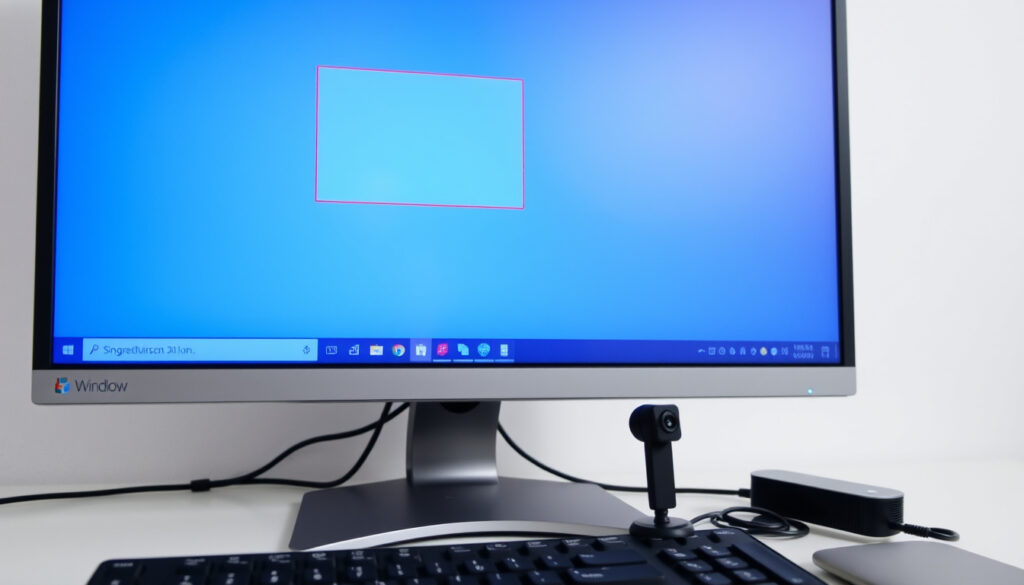
How to Screen Record on Windows: Windows 10 and 11 Guide
There’s a moment when you just need to capture what’s on your screen — a video call, a gameplay clip, or a quick software walkthrough. Windows 10 and 11 both come with a free, built-in screen recorder called Xbox Game Bar that handles the job without any extra downloads. This guide walks through exactly how to use it, how to get audio recording working, and what to do when the shortcut stops responding.
Windows 11 users: over 400 million as of 2024 ·
Built-in screen recorder introduced: Windows 10 October 2018 Update (version 1809) ·
Default recording keyboard shortcut: Windows + Alt + R ·
Maximum recording length (Xbox Game Bar): 4 hours ·
Free third-party screen recorders available: more than 50
Press Windows + G to open the Game Bar overlay, then click the record button or press Windows + Alt + R to start recording immediately.
Under Capturing, set Audio to record to All to capture both system sounds and microphone.
| Fact | Detail |
|---|---|
| Built-in tool name | Xbox Game Bar |
| Default shortcut start/stop | Windows + Alt + R |
| Microsoft support page | support.microsoft.com |
| Recording format | MP4 (H.264) |
| Available on Windows 7 | No (requires Windows 10 or 11) |
Quick snapshot
- Free, no download required (Microsoft Support)
- Record up to 4 hours (Microsoft Support)
- Supports system and microphone audio (Microsoft Support)
- Free, built into Windows 11 (Microsoft Support)
- Capture region or full screen (Microsoft Support)
- No sound recording option (Microsoft Support)
- OBS Studio (free) (OBS Project)
- ShareX (free) (ShareX)
- Advanced features like editing and streaming (OBS Project)
- Whether Game Bar records 4K resolution
- Whether all third-party recorders are safe (individual software verification required)
How do I record my screen on my PC?
Using Xbox Game Bar on Windows 10 and 11
- Press Windows + G to open the Game Bar overlay (Microsoft Support).
- Click the Record button (circle icon) on the capture widget, or press Windows + Alt + R to start recording immediately.
- Recording saves as an MP4 (H.264) file in the Videos > Captures folder (Microsoft Support).
Using third-party free recorders
- OBS Studio: Open-source software with full control over region, frame rate, and audio sources (OBS Project).
- ShareX: Lightweight tool with built-in screen recording and region selection (ShareX).
Game Bar records the entire active window or full screen — it cannot record a custom rectangular region. For that, you need a third-party tool.
The implication: for most users, starting with Game Bar is the simplest path, but be aware of its limitations.
How do I record my screen on Windows 10 with sound?
Enabling audio in Xbox Game Bar settings
- Open Game Bar with Windows + G and click the gear icon (Settings).
- Navigate to Capturing.
- Under Audio to record, choose All to capture both system sounds and microphone, or Game for system audio only (Microsoft Learn Q&A).
Recording system audio and microphone simultaneously
- During a recording, you can toggle the microphone on and off from the capture widget (Microsoft Support).
- If no sound is captured, check that Audio to record is not set to None. This is the most common fix (Microsoft Learn Answers).
The pattern is simple: most audio-recording issues come down to a single dropdown setting. Choosing All before hitting record saves the frustration of a silent video.
What this means: audio troubles are usually configuration, not hardware — check the dropdown first.
What is the quickest way to record your computer screen on Windows 11?
Using the Windows + Alt + R shortcut
- Press Windows + Alt + R to start recording the current app or game immediately (Microsoft Support).
- The recording indicator appears as a small timer in the corner of the screen.
Using the Snipping Tool Screen Recorder
- Press Windows + Shift + S to open the Snipping Tool, then select the Record option (available in Windows 11 only).
- Choose a region or full screen, then click Start.
- No audio recording is supported in this tool.
For users who only need the fastest path: Windows + Alt + R is two keys and zero clicks. The Snipping Tool adds a step but gives region control.
The catch: speed comes at the cost of control — no region selection, no audio options.
How to screen record a certain area on Windows 10 PC?
Using Xbox Game Bar region capture
- Xbox Game Bar does not support region selection natively. It records the entire active window or full screen.
Using third-party tools for region selection
- OBS Studio: Add a Display Capture or Window Capture source, then hold Alt while dragging the red border to crop. Adjust the recording area with precision (OBS Project).
- ShareX: In the main menu, go to Capture > Screen Recording (FFmpeg), then draw a rectangle around the area you want to record (ShareX).
The trade-off: region capture trades away Microsoft’s no-download convenience for control that third-party tools handle naturally.
Why is Windows Alt+R not working?
Checking if Xbox Game Bar is enabled
- Go to Settings > Gaming > Xbox Game Bar and ensure the toggle is On (WindowsForum).
- If it’s on but the shortcut still fails, try resetting the app: Settings > Apps > Installed apps > Xbox Game Bar > Advanced options > Reset (Microsoft Learn Q&A).
Updating graphics drivers
- Outdated GPU drivers can interfere with the Game Bar overlay. Download the latest drivers from NVIDIA, AMD, or Intel’s official website.
Resolving background app conflicts
- Close overlay tools from apps like Discord, Steam, or NVIDIA GeForce Experience that may have captured the Windows + Alt + R shortcut first (Reddit r/techsupport).
Resetting Game Bar clears its settings, including your audio preferences. After a reset, go back to Capturing and set Audio to record to All before your next session.
The pattern: most shortcut failures trace back to one of three causes — disabled settings, outdated drivers, or app conflicts.
elevenforum.com, youtube.com, youtube.com, youtube.com, youtube.com, youtube.com
Frequently asked questions
Can I record my screen on Windows 10 for free?
Yes. Xbox Game Bar is built into Windows 10 and 11 at no cost. It records up to 4 hours in MP4 format.
Does screen recording in Windows 10 capture audio?
Yes, if you set Audio to record to All in Game Bar settings. By default it may be set to Game only.
How long can I record with Xbox Game Bar?
Up to 4 hours per session, limited by available disk space.
How to screen record on Windows 7?
Xbox Game Bar is not available on Windows 7. Use a third-party tool like OBS Studio or ShareX.
How to record screen on HP laptop running Windows?
Use the same method as any Windows 10 or 11 PC: Windows + G opens Game Bar, Windows + Alt + R starts recording.
Is there a Windows shortcut to start screen recording?
Yes. Windows + Alt + R starts and stops recording without opening the overlay.
What file format does Xbox Game Bar record in?
MP4 with H.264 video codec.
More related posts
 How to Draw a Dragon – Step-by-Step Guide for Beginners
 New England Patriots vs Buccaneers Match Player Stats
 Kelly Osbourne Weight Loss: Grief, Surgery, and Ozempic
 The Last Days of Ptolemy Grey: True Story, Season 2, Episodes
 Steel Ball Run Anime: Release Date, Schedule & Where to Watch
 Power (TV Series): Cancellation, Season 7, Spin-offs & Cast Facts
 Jelly Roll Wild Ones: Song, Female Vocalist, and His Story
 Drive-In Movies Near Me in Ireland: Find Outdoor Cinemas